QuickWave
software for electromagnetic design
Copyright © 2010 by
QWED
All Rights reserved
info@qwed.eu
QW-OptimiserPlus
General view of QW-Optimiser Plus
QW-OptimiserPlus is an optimiser integrated with QW-Simulator. The new interface appeared for the first time in version 6.0 of the software. It was designed to work with the library of optimisation routines O2DLL_F.dll (O2DLL_F_x64.dll for 64-bit version) developed by Dr. L.Opalski and offered by QWED as an optional module.
Note that QW-Simulator has its basic sequential implementation (ker1.exe), as well as family of multithread implementations within QW-MutliSim.
QW-OptimiserPlus is not compatible with QW-BHM, as their operating regimes are with different excitation signals (pulse and sinusoidal, respectively). Starting with version 7.0, QW-OptimiserPlus does operate with QProny.
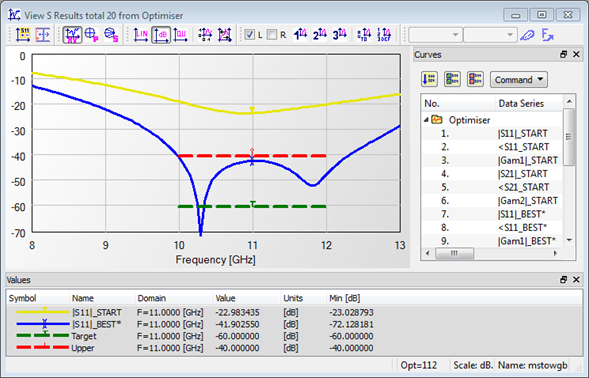
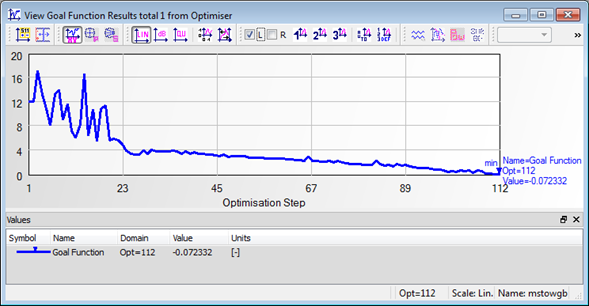
During the Optimisation process, QW-OptimiserPlus accumulates the results of Optimisation for various values of the optimised variables in cache. After each simulation, QW-OptimiserPlus will automatically show in Simulation Log, Optimiser Info tab, the current goal function value. Also a View Results window for a particular objective is to be displayed automatically after the first simulation. At any time during the Optimisation process, those windows may be manually closed or open.
Setting optimiser preferences
There are three groups of parameters for optimiser: Editor for Optimiser, Optimiser Parameters and Simulations.
In the Editor for Optimiser group the Editor used by Optimiser for modifying the project can be set.
In the Optimiser Parameters group the stop criteria for optimisation and Advanced parameters can be set i.e. the level of the satisfactory level of the goal function or the initial area of search for the optimum.
In the Simulations group the parameters for simulations can be set i.e. number of iterations per simulation or use QProny Module in simulations.
Setting optimiser variables
By default, when configuring a new Optimisation project (which does not have its projectname.xyp file), the software first assumes the first case and looks for the UDO file: projectname.udo in the project directory. If such a UDO file exists, the projectname.udo appears in the UDO Path line. The parameters defined in its header are automatically loaded as variables into the Variables tab. Their names will be shown in the Name column, the Value column contains the initial value loaded from UDO, and Lower and Upper values are calculated automatically (depending on default settings in the Preferences). The last column shows the description for each variable.

Note that the values of variables enabled for Optimisation are provided at each Optimisation step by QW-OptimiserPlus to QW-Editor, which modifies the geometry accordingly and creates a new mesh for the next simulation.
We have also the choice between Optimise and Grid Search regimes. When Grid Search is chosen, the QW-OptimiserPlus library is actually turned off.
Setting optimiser objectives
On the Type list, we have a choice between Scattering Parameters versus frequency, FD Probing versus frequency, and Radiation Pattern versus angle objectives. The Lower bound, Target and Upper bound for the objective can be defined in the Frequency/Angle Range or in Sub-Range.
The target, lower bound and upper bound in a sub-range for a particular objective can be also read from file. It is also possible to inspect and the objective from file graphically.
Information about the process of Optimisation displayed in the Simulation Log
During Optimisation, the basic information about it is displayed in the Simulation Log, Optimiser Info tab. The first batch of information is provided upon the start of the process. It includes the Maximum number of simulations, the Stop Criterion, the state of Cache, the Objectives and initial values of the Variables. If optimisation cannot be started, an explanation is given. After each Simulation is completed we can see in the log:
Optimiser cache
The role of cache is to accumulate the results of Optimisation for various values of the optimised variables. Thus when the same project is optimised several times, and with goal functions based on the same set of characteristics, its cache expands. By referring to cache, QW-OptimiserPlus avoids performing an identical simulation twice (and also performing a simulation for variable values within resolution from a previously simulated case). Moreover, it has more information for suggesting new variable values. Thus the use of cache facilitates faster converge towards the optimum solution.
If the Optimisation is run again without clearing Cache, the process starts from the best point obtained in previous Optimisation processes (unless changes of the enabled variable values have been made prior to the run) and taking into account the optimisation history. To start Optimisation without taking the history into account, we need to clear cache before start Optimisation.

Cache is a text file and can be inspected with a text editor. Since version 7.0, a more convenient way of inspecting the cache is via the Optimiser-View Optimiser Cache command. It opens the View Optimiser Cache dialogue window. While all variables from the Variables tab are saved in cache, the View Optimiser Cache dialogue window shows only the currently enabled variables. On the other hand, the cache contains the characteristics on which the objectives are based, and not the values of the individual objectives or the goal function at consecutive optimisation steps recorded in cache. The values shown in the Goal Function column in are re-calculated when the cache is loaded, using the current definitions of the objectives for the project.
Grid Search
Finally the Simulation Log shows that a particular Stop Criterion has been fulfilled and displays the best set of variables.
| • |
number of consecutive Optimisation runs. If accompanied by an asterisk (e.g.*Opt=2), it means that this particular attempt has given the best result so far |
| • |
the current value of the Goal Function |
| • |
the current values of the Variables |
| • |
the current maximum and minimum values of objectives, taken from among all objectives in the project |
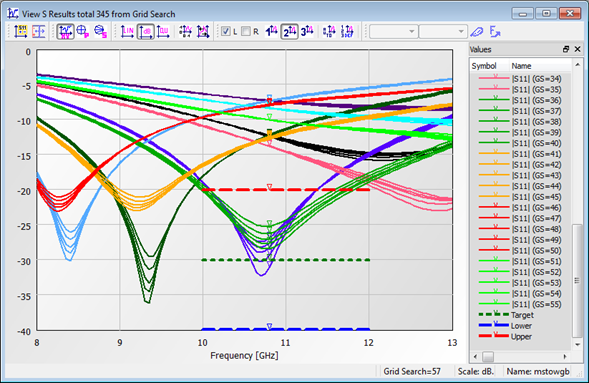
The interface of QW-Simulator used with QW-OptimiserPlus can be used as an independent tool, without application of the optimising procedure. The user may wish to analyse the project with a few parameters being swept within a specific range with a specific increment. Such an analysis is called Grid Search or parameter sweep. It can be used by checking 'Grid Search' checkbox in the Variables Tab (see Setting optimiser variables). It can be advantageous in:
| • |
"manual optimisation" when we want to find the best set of parameters by a numerical "cut and try" method supported by the engineer's experience |
| • |
analysis of sensitivity of the circuit characteristics to mechanical tolerances |
| • |
finding a good starting point for further automatic optimisation |
Starting from version 6.5, it is possible to acquire the licence for the Grid Search option without the licence for the complete QW-OptimiserPlus.
Since the Grid Search and Optimise regimes use the same cache, the results accumulated during Grid Search will be useful for further automatic Optimisation.
In the Grid Search regime, the software performs consecutive simulations with enabled variables changing on a fixed grid of values. The Lower and Upper columns in Variables Tab (see Setting optimiser variables) now denote the limits of the grid (the range). The Value column has been replaced with the Steps per Range column, which shows how many equally spaced values from its range each variable will adopts. If k variables are enabled, and if each has the same Steps per range=N, then a total of Nk simulations will be performed in the Grid Search process.
For several enabled variables and several steps per range, the Grid Search regime may become time consuming. However, when little is a priori known about the influence of different variables on the Goal Function, it may be a good choice to first run Grid Search on two or three major variables with three to five Steps per Range. The results of such Grid Search should indicate a good starting point for further use of Optimisation.
Designed by Janusz Rudnicki
Updated: March 19, 2008